
LCD spot damage is a common display problem that can affect smartphones, laptops, tablets, televisions, computer monitors, and other devices with liquid crystal displays. It may appear as a dark patch, bright dot, colored mark, cloudy area, or irregular stain on the screen. Some spots are barely noticeable, while others can interfere with reading, watching videos, gaming, and everyday device use.
Understanding lcd spot damage helps users identify the likely cause, determine whether the problem can be fixed, and avoid actions that might make the display worse. Although certain screen marks result from surface dirt or temporary image effects, other spots indicate physical damage to the LCD panel or its internal layers. Recognizing the difference is the first step toward choosing the right solution.
Quick Information Table
| Detail | Information |
|---|---|
| Topic | LCD spot damage |
| Affected devices | Smartphones, laptops, monitors, tablets, and TVs |
| Common symptoms | Black spots, white dots, colored patches, cloudy marks, and uneven brightness |
| Main causes | Pressure, impacts, defective pixels, liquid exposure, and internal panel damage |
| Is it repairable? | Depends on the cause, severity, and display design |
| Basic troubleshooting | Clean the surface gently, restart the device, and test different backgrounds |
| Common repair | LCD panel replacement when internal damage is confirmed |
| Prevention | Use protective cases, avoid pressure, and keep liquids away |
| Repair cost | Varies by device, screen type, model, and labor |
| Best next step | Identify whether the spot is on the surface or inside the display |

What Is LCD Spot Damage?
LCD spot damage refers to visible marks or localized irregularities that appear on a liquid crystal display. An LCD creates images by controlling how light passes through liquid crystals and several optical layers. These components work together with a backlight, filters, electrodes, and other display elements to produce colors and brightness.
When one or more of these components stop functioning correctly, a particular area of the screen may look different from the surrounding display. This difference can appear as a small dot, a dark circle, a bright patch, or a larger discolored region.
The term does not describe one specific technical fault. Instead, it covers several different display problems that can look similar from the outside.
How an LCD Screen Works
Most conventional LCD screens use a backlight to provide illumination. Liquid crystals control the amount of light passing through individual pixels, while color filters help produce red, green, and blue components. The display electronics control these pixels to form text, images, and video.
If a pixel fails, a small spot may appear. If pressure damages the liquid crystal layer, a larger irregular patch may develop. Damage to the backlight or optical films can produce cloudy areas or uneven brightness.
Understanding these differences is important because not every screen spot has the same cause, and not every spot requires the same repair.
Common Types of LCD Spot Damage
LCD spot damage can take several forms. The appearance, size, location, and behavior of the spot can provide useful clues about the underlying problem.
1. Black Spots
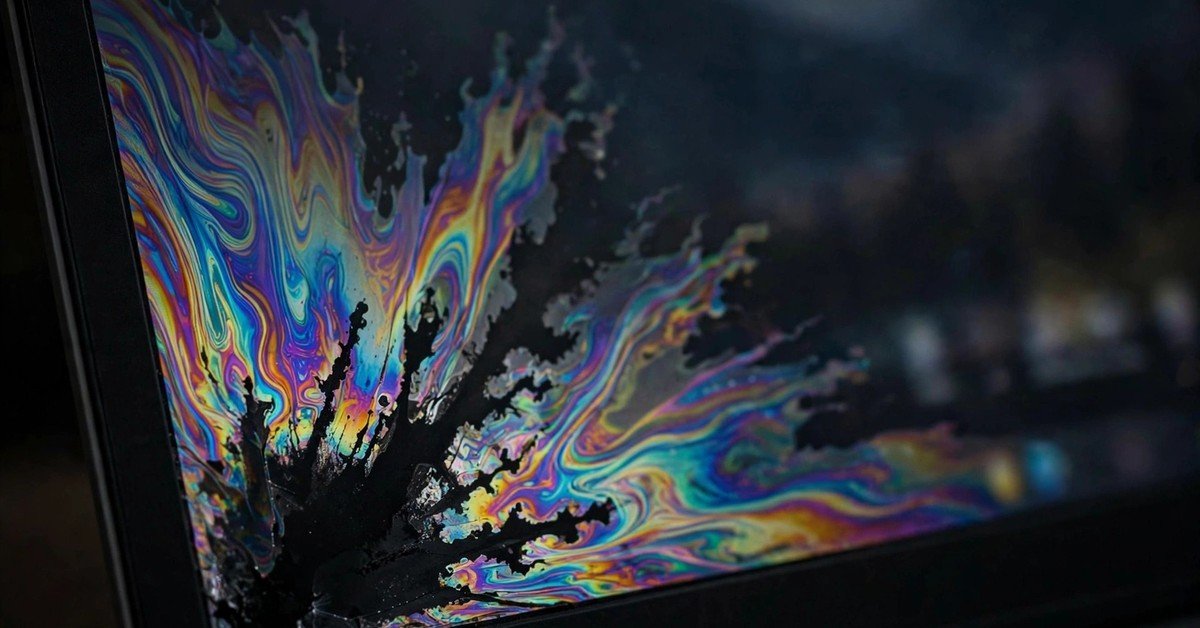
Black spots are among the most noticeable forms of display damage. They may appear as tiny dots, dark circles, or irregular ink-like patches.
Common causes include:
• Dead pixels or clusters of failed pixels.
• Physical pressure on the LCD panel.
• Internal cracks in the display layers.
• Damage caused by dropping or bending a device.
• Localized failures that prevent light from passing through the display.
A small black dot that remains the same size may indicate a defective pixel. A larger, irregular black patch, particularly after an impact, suggests physical damage to the panel.
Important: If a black patch grows over time, arrange a professional inspection. Progressive damage can indicate a damaged display layer rather than an isolated pixel fault.
2. White or Bright Spots
White spots appear as bright dots or patches that stand out against the surrounding image. They can be especially noticeable when viewing dark content.
Possible causes include uneven backlight distribution, damage to diffuser films, pressure on internal components, or defective pixels.
The backlight in an LCD is designed to distribute light evenly across the screen. If an optical layer becomes compressed, displaced, or damaged, certain areas may appear brighter than others.
A single bright pixel is different from a broad white patch. The former may be a pixel fault, while the latter can indicate an optical-layer problem.
3. Colored Spots
Colored spots may appear red, green, blue, purple, or another unusual shade. Some are caused by individual subpixels that remain on or fail to display the correct color. Others may result from physical damage to the liquid crystal layer.
Look closely at the size and shape of the mark. A tiny, sharply defined colored dot is more consistent with a pixel-related defect. An irregular colored patch may indicate internal panel damage.
Colored spots that appear suddenly after a device has been dropped or squeezed deserve particular attention.
4. Pressure Marks
Pressure marks develop when force is applied to the display. They may look like cloudy circles, dark bruises, bright patches, or rainbow-like patterns.
Common situations include carrying a laptop in an overfilled bag, pressing too hard while cleaning a screen, closing a laptop with an object on the keyboard, or squeezing a phone in a tight pocket.
Pressure damage can affect the liquid crystal layer, the panel glass, or the optical films behind the image-forming components. Some marks remain stable, while more severe damage can worsen.
Do not try to remove a pressure mark by rubbing or pressing it. Additional force may increase the damage.
5. Cloudy or Uneven Areas
Cloudy patches are regions where the display looks hazy, discolored, or unevenly illuminated. They may be more visible on plain white, gray, or dark backgrounds.
Potential causes include:
• Uneven backlight illumination.
• Damaged or displaced optical films.
• Moisture entering the device.
• Separation between internal display layers.
• Manufacturing defects.
Cloudiness does not always mean the screen is physically broken. Some displays naturally show slight brightness variation, particularly at certain viewing angles. However, a new or increasingly visible patch should be investigated.
What Causes LCD Spot Damage?
Several factors can cause visible spots on an LCD screen. Identifying the likely source helps determine whether basic troubleshooting is appropriate or professional repair is necessary.
Physical Impact and Accidental Drops
A device does not need to have visibly shattered glass to suffer internal screen damage. A drop can damage delicate components beneath the outer surface, producing dark patches, bright areas, colored lines, or clusters of defective pixels.
The location of the spot can sometimes help identify the impact area, but the visible mark does not always appear exactly where the force was applied.
Excessive Pressure
Pressure is a common cause of LCD spot damage. Modern displays contain thin, delicate layers that can be affected by concentrated force.
Examples include stacking heavy objects on a laptop, pressing a screen with a finger or tool, or storing a tablet beneath other items. Even when the outer glass remains intact, the internal display may be damaged.
Manufacturing Defects
Some screens develop spots because of defects that originated during manufacturing. These may include defective pixels, contamination trapped between layers, uneven optical materials, or problems with the backlight.
If a spot appears on a recently purchased device without any known impact, check the warranty terms and contact the manufacturer. Coverage depends on the device, the type of defect, and the manufacturer’s policy.
Moisture and Liquid Exposure
Liquid entering a device can affect connectors, circuits, and display layers. Depending on the construction of the screen and the extent of exposure, the result may include discoloration, dark patches, flickering, or other image abnormalities.
If liquid exposure is suspected, turn the device off if it is safe to do so and seek qualified service. Avoid heating the device or continuing to charge it when internal liquid damage is possible.
Heat and Internal Component Failure
Excessive heat can affect adhesives, optical films, electronic components, and other display materials. A malfunctioning backlight or its associated circuitry may also produce uneven brightness.
In portable devices, a swollen battery can exert pressure on nearby components and the display. If the screen or casing begins bulging, stop using and charging the device, and arrange professional battery service. Do not press the screen back into place.
How to Identify LCD Spot Damage
A simple inspection can help distinguish surface dirt, pixel defects, and more serious panel damage.
Step 1: Clean the Screen Carefully
Turn off the display and inspect it under good lighting. Use a clean, soft microfiber cloth to remove dust and fingerprints.
Follow the manufacturer’s cleaning instructions. Do not use excessive moisture, abrasive materials, or strong household cleaners.
If the spot disappears after cleaning, it was likely surface contamination rather than internal LCD damage.
Step 2: Display Different Background Colors
Open plain white, black, red, green, and blue images, one at a time. Observe whether the spot changes appearance.
| Observation | Possible explanation |
|---|---|
| Tiny black dot on a white screen | Dead pixel or defective subpixel |
| Tiny colored dot on a dark screen | Stuck pixel or subpixel |
| Large irregular dark patch | Pressure damage or panel failure |
| Bright patch on a dark screen | Backlight or optical-layer issue |
| Mark disappears after cleaning | Surface dirt or residue |
| Spot accompanied by lines | Possible panel or electronic damage |
These tests offer clues rather than a definitive diagnosis. Different faults can produce similar symptoms.
Step 3: Check Whether the Spot Appears in a Screenshot
On a computer or smartphone, take a screenshot while the spot is visible. View that screenshot on another device if possible.
If the mark is absent from the screenshot image, the physical display is a likely source of the problem. If the mark appears in the screenshot itself, investigate software, graphics processing, or the displayed content.
This test is not conclusive in every situation, but it can help separate physical display faults from software-related issues.
Step 4: Observe the Spot Over Time
Take a photograph of the display and record the spot’s approximate size and location. Check it again later without pressing or manipulating the affected area.
A stable, tiny dot may be an isolated pixel defect. A growing dark patch, spreading discoloration, or newly appearing lines can indicate more extensive damage and should be inspected promptly.
How to Fix LCD Spot Damage
The correct repair depends on whether the problem comes from surface contamination, a pixel defect, or physical damage to the display panel.
Clean Surface Marks Properly
If the spot is caused by dust, fingerprints, or residue, gentle cleaning may resolve the issue. Use a microfiber cloth and follow the device manufacturer’s recommended cleaning procedure.
Cleaning will not repair internal pressure damage, dead pixels, or broken display layers.
Restart the Device and Check Software
Restart the device and check whether the spot appears in different applications and on different backgrounds. If the issue is associated with a particular application, image, or graphics setting, software troubleshooting may help.
Updating graphics drivers can be useful for certain computer display problems, particularly when lines or other visual abnormalities are software-related. However, software updates cannot repair a physically damaged LCD panel.
Use Pixel Testing Tools Carefully
Pixel-testing tools display solid colors to help identify defective pixels. Some utilities also rapidly change colors in an attempt to recover stuck pixels.
Their effectiveness is limited. A stuck pixel may occasionally recover, but a dead pixel, damaged transistor, pressure mark, or cracked panel generally cannot be repaired through software. Avoid tools or techniques that require pressing hard on the display.
Seek Professional Screen Repair
If the spot is caused by internal physical damage, a technician may recommend replacing the LCD panel or the complete display assembly.
The repair process depends on the device. Some laptops and monitors have replaceable panels, while many smartphones use integrated display assemblies that combine the screen with touch-sensitive components and protective glass.
A qualified technician can determine whether a panel replacement is necessary and whether the repair is economically worthwhile.
Can LCD Spot Damage Spread?
Yes, some forms of LCD spot damage can spread, but others remain unchanged.
• Small pixel defects: Often remain stable, although new defects can develop.
• Pressure marks: May remain the same size or become more noticeable if the panel has suffered significant damage.
• Ink-like dark patches: Can expand when internal panel damage progresses.
• Liquid-related damage: May worsen as corrosion or internal contamination affects additional components.
• Backlight problems: Can become more noticeable if the underlying fault progresses.
If the spot is growing, new lines are appearing, or a larger part of the display is becoming dark, seek professional inspection rather than waiting for the problem to resolve itself. Physical damage can sometimes progress even when the outer glass looks intact.
LCD Spot Damage Repair Costs
The cost of repairing LCD spot damage varies considerably. There is no single price that applies to every device.
The main factors affecting repair costs include:
• Device type: A basic monitor may cost less to repair than a premium laptop or smartphone.
• Screen technology: High-resolution, touchscreen, and specialized displays can be more expensive.
• Damage severity: A defective panel may require complete replacement rather than a simple adjustment.
• Parts availability: Older or less common devices may have limited replacement options.
• Labor charges: Repair prices vary by service provider and location.
• Warranty coverage: Eligible manufacturing defects may qualify for repair or replacement under the applicable warranty.
Before approving a repair, request a quote that includes parts, labor, and any diagnostic fees. Compare the cost with the price of a replacement device, especially if the damaged screen is old or expensive to replace.
Does LCD Spot Damage Come Under Warranty?
Warranty coverage depends on the cause of the damage and the manufacturer’s policy.
Manufacturing defects and certain pixel problems may qualify for service if they meet the applicable conditions. Accidental damage, liquid exposure, and pressure marks caused by mishandling are commonly excluded from standard warranties, although separate accidental-damage coverage may provide protection.
If your screen develops a spot, take clear photographs and record when the problem first appeared. Check the warranty terms for your specific model before attempting any repair.
Do not assume that every defective pixel qualifies for replacement. Manufacturers can have different pixel-defect thresholds, and eligibility may depend on the number, type, and location of affected pixels.
How to Prevent LCD Spot Damage
Preventive care can significantly reduce the risk of screen damage.
Handle Devices Carefully
Use a suitable protective case for phones and tablets. Carry laptops in padded bags, and avoid placing heavy objects on top of electronic devices.
Do not lift a laptop by its screen or apply pressure to the display when opening and closing it.
Keep Laptop Keyboards Clear
Before closing a laptop, remove pens, cables, earbuds, and other objects from the keyboard. Small objects trapped between the keyboard and display can concentrate pressure and damage the panel.
Clean Without Applying Excessive Force
Use a soft microfiber cloth and follow the recommended cleaning instructions. Avoid pressing hard against stubborn marks, because the force may damage the LCD layers.
Protect Devices From Heat and Moisture
Keep electronics away from excessive heat, direct liquid exposure, and environments outside their recommended operating conditions. Ensure laptops have adequate ventilation.
If a device shows signs of battery swelling, stop using it and arrange professional service.
Use Proper Storage and Transportation
Avoid bending tablets, squeezing phones into tight spaces, or packing laptops where other objects can press against the screen. For televisions and large monitors, follow the manufacturer’s instructions for lifting, moving, and storage.
Inspect New Devices Early
Check a new screen against plain backgrounds and look for unusual dots, bright areas, or discoloration. If a defect is present, document it promptly and contact the seller or manufacturer within the applicable return or warranty period.
Frequently Asked Questions About LCD Spot Damage
Can LCD spot damage be repaired without replacing the screen?
Some apparent spots are simply dirt or surface residue and can be cleaned away. Certain stuck pixels may occasionally recover, but physical damage to the LCD layers usually requires panel replacement.
Why is there a black spot on my LCD screen even though the glass is not cracked?
The internal display layers can be damaged without visible cracks in the outer glass. Pressure, impact, or an internal pixel fault may cause a black spot even when the screen surface appears intact.
Will an LCD black spot disappear on its own?
A genuine dead pixel or physical pressure mark is unlikely to disappear permanently without repair. If the mark is caused by surface dirt, cleaning may remove it. Do not press or massage the affected area in an attempt to make it disappear.
Is LCD spot damage dangerous?
A small, stable display defect is generally a visual problem rather than a direct safety hazard. However, bulging, unusual heat, or a separating screen may indicate a more serious issue, such as battery swelling. Stop using the device if battery damage is suspected and seek professional assistance.
Can a screen protector prevent LCD spot damage?
A screen protector can help protect the surface against scratches and some minor impacts. However, it cannot guarantee protection against strong pressure, internal panel damage, or all types of drops.
Should I continue using a device with LCD spot damage?
You may continue using a device with a small, stable spot if it functions normally and there are no signs of a safety issue. If the spot spreads, interferes with visibility, or appears alongside lines, flickering, or physical deformation, arrange an inspection.
Conclusion
LCD spot damage can range from harmless surface marks to serious internal display faults. Black dots, bright patches, colored spots, pressure marks, and cloudy areas may look similar at first, but their causes and repair options differ.
The best approach is to clean the screen gently, test it against different backgrounds, document any changes, and avoid applying pressure to the affected area. If the spot persists or spreads, seek professional advice and check the device’s warranty before paying for a repair.
Preventive care, careful handling, proper storage, and timely inspection can help protect LCD screens and extend the useful life of electronic devices.